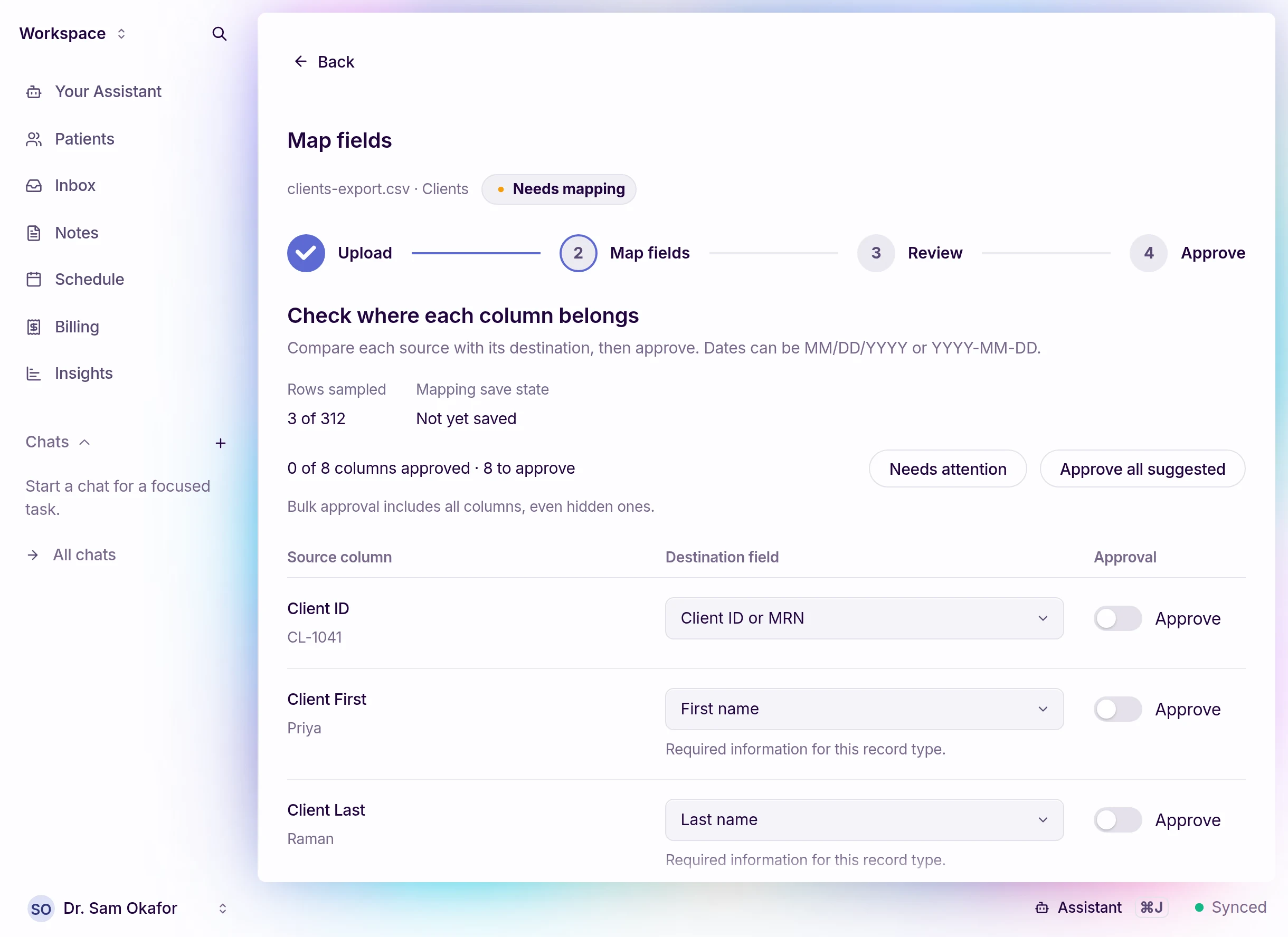
Review the column mapping before updating charts
Each source column sits beside sample values from your file and its suggested Calm field. Change any destination, preserve extra columns as source details, and approve before continuing.
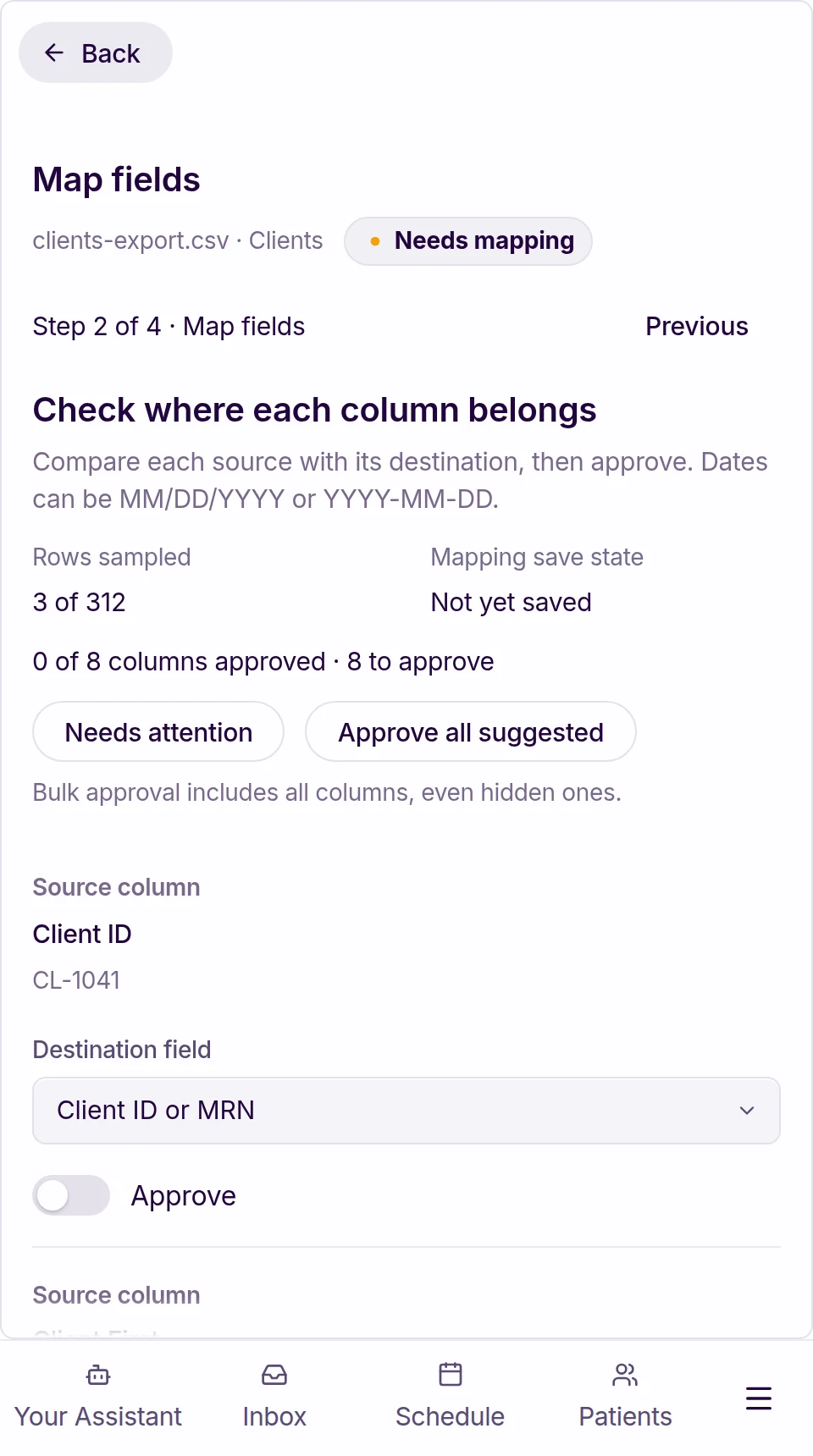
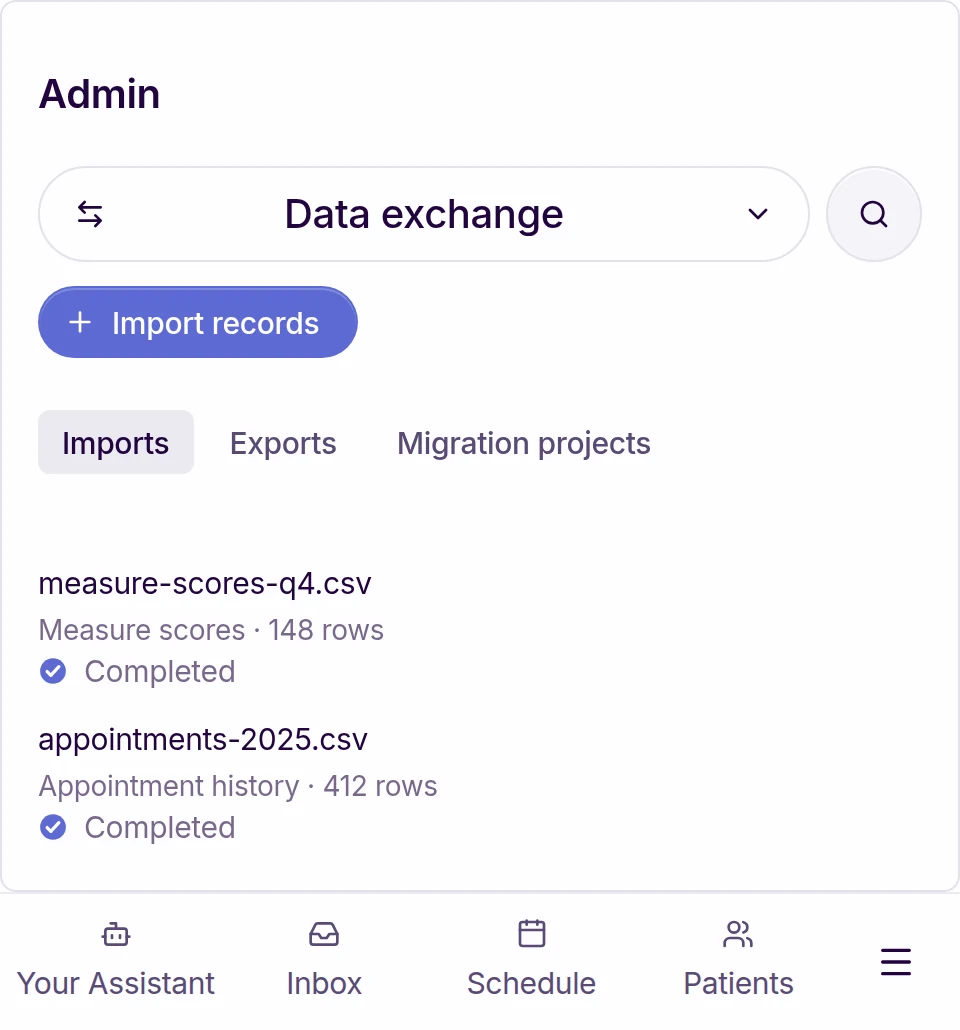
Upload client and history CSVs for review. Check mappings, exceptions, and possible duplicates before you approve and run the import to update charts.
Compare your current behavioral health workflows with the steps your team can try in Calm.
| Workflow | Current workflow | Calm |
|---|---|---|
| Post-session charting | How do clinicians bring visit context into a draft and review it before signing? | Start a draft from a recap, compare AI edits, and sign in Note Studio. For configured individual visits, Live AI Scribe requires consent. |
| Morning prep & follow-ups | How do you review the day’s schedule, messages, and unsigned notes before visits? | Proactive Assistant delivers morning briefings, 15-minute visit-prep cards, and urgent alerts with one-click actions. |
| Telehealth & group visits | How do you share visit links and document care for each client in a group session? | Browser-native 1:1 and 16-participant group telehealth with waiting room, screen share, and linked Group DAP. |
| Intake & clinical forms | How do you update intake questions, set follow-ups, and record screening scores? | Draft dynamic forms from a plain-language brief, add Show when and Required when rules, and auto-score PHQ-9, GAD-7, PCL-5, and AUDIT‑C. |
| Billing, RCM & compliance | Where do you check claim drafts, review remittances, and track outstanding balances? | Review claim drafts, upload 835 remittances, and track outstanding balances in the billing workspace. |
| Speed & data portability | How do you move between charts and export records when a client transfers care? | Offline-first local sync store for instant chart navigation, plus audited FHIR R4 and C‑CDA exports anytime. |
The upload saves a review job. Chart data changes only after you approve and run the import.
Supported today
Export a CSV of names, dates of birth, and contacts. History CSVs can also bring assessments, past appointments, medications, and allergies.
Upload the CSV to Calm. The upload saves an import job so you can review the file before applying any changes to charts.
Calm suggests how your columns map to chart fields. Confirm or change each one, and skip columns you do not need.
Invalid dates and problem rows are listed instead of skipped. Possible duplicates with existing charts are flagged before import.
When the preview looks right, approve and run the import. Your clients are ready in the Patients list and charts.
The guided import wizard samples your file, shows where each column lands, and holds back problem rows until you decide.
Each source column sits beside sample values from your file and its suggested Calm field. Change any destination, preserve extra columns as source details, and approve before continuing.
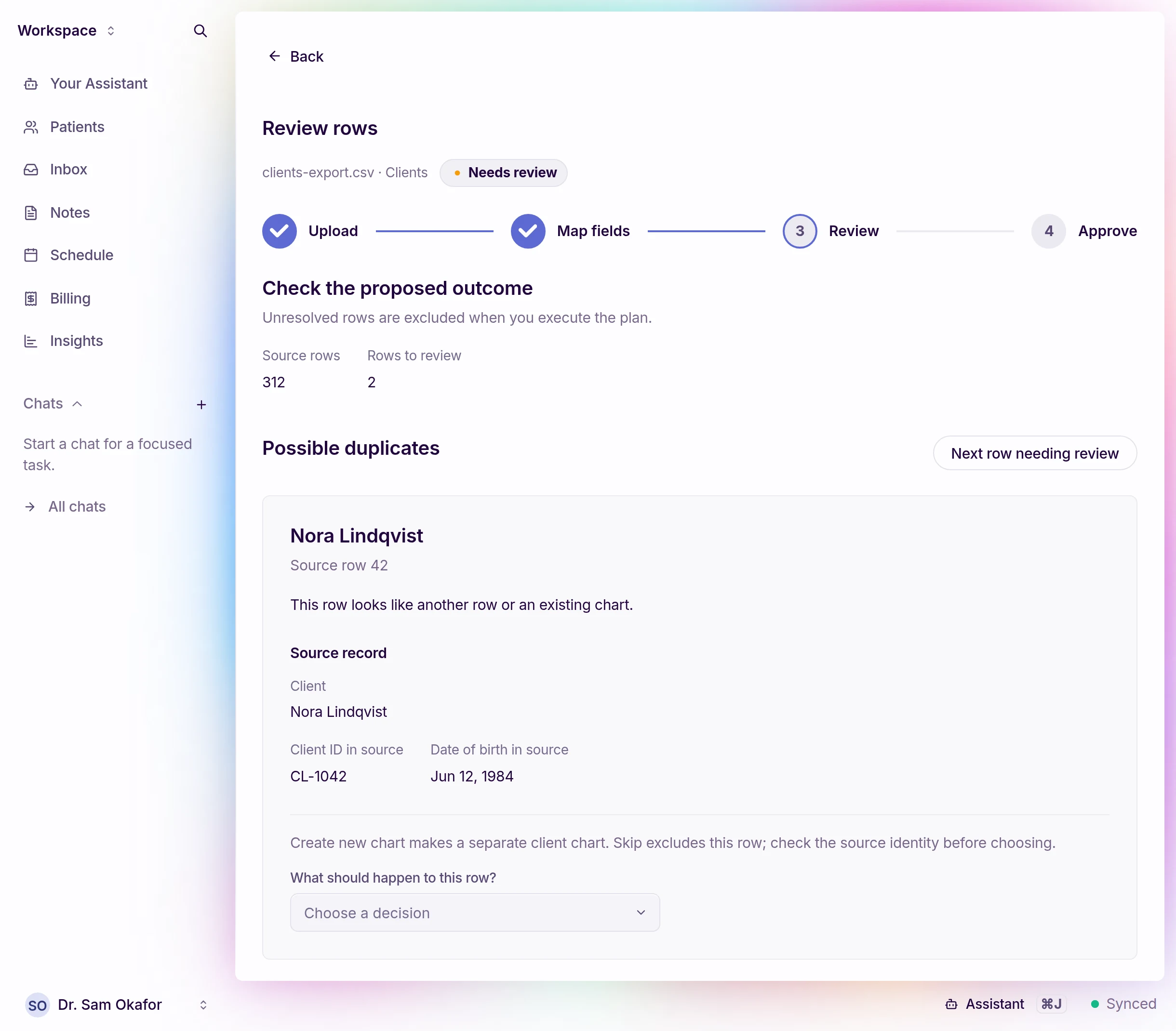
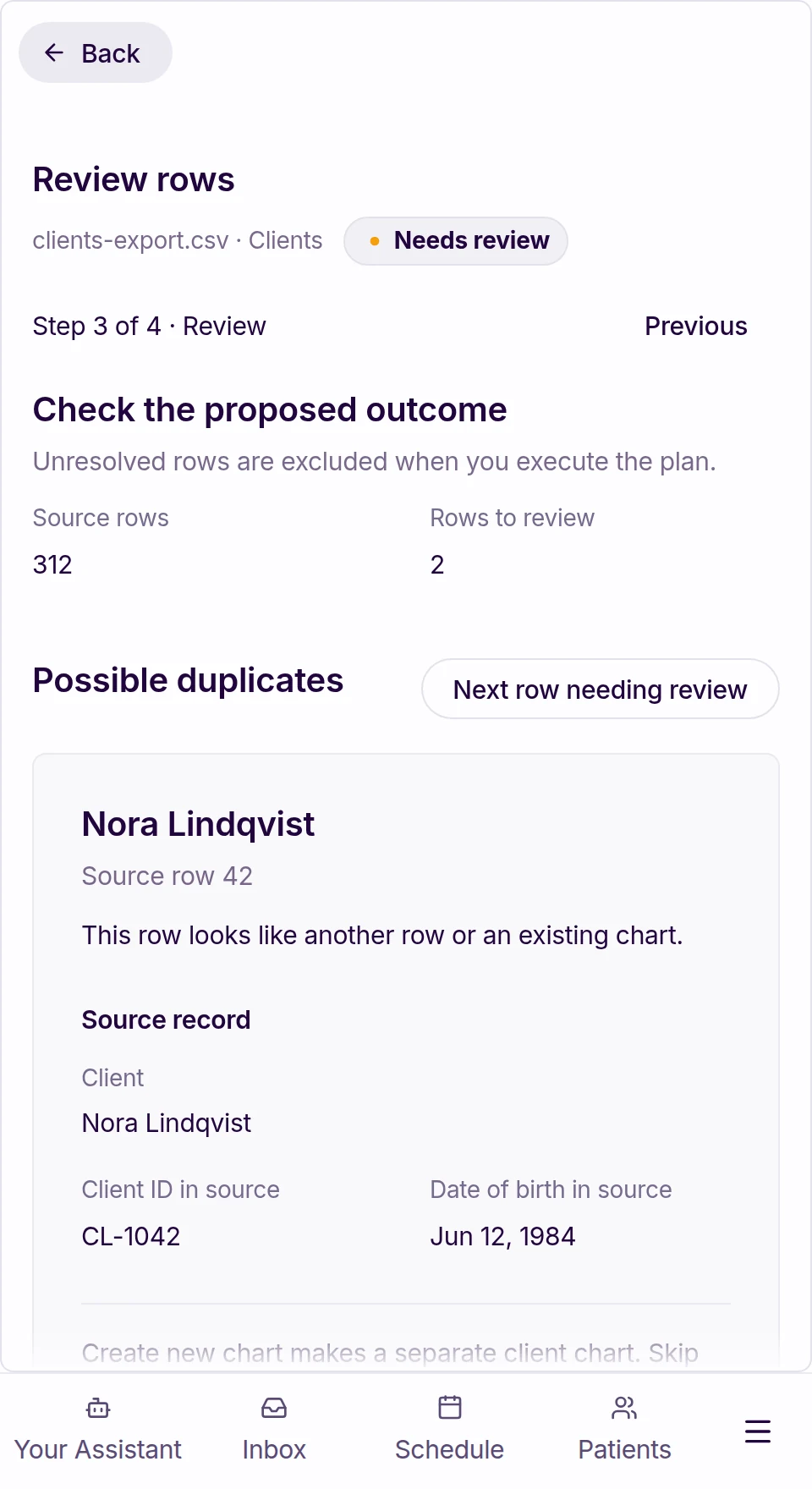
Possible duplicates with existing charts and rows with invalid dates appear side by side with their source details. You choose whether to link, create, or skip each row before approval.
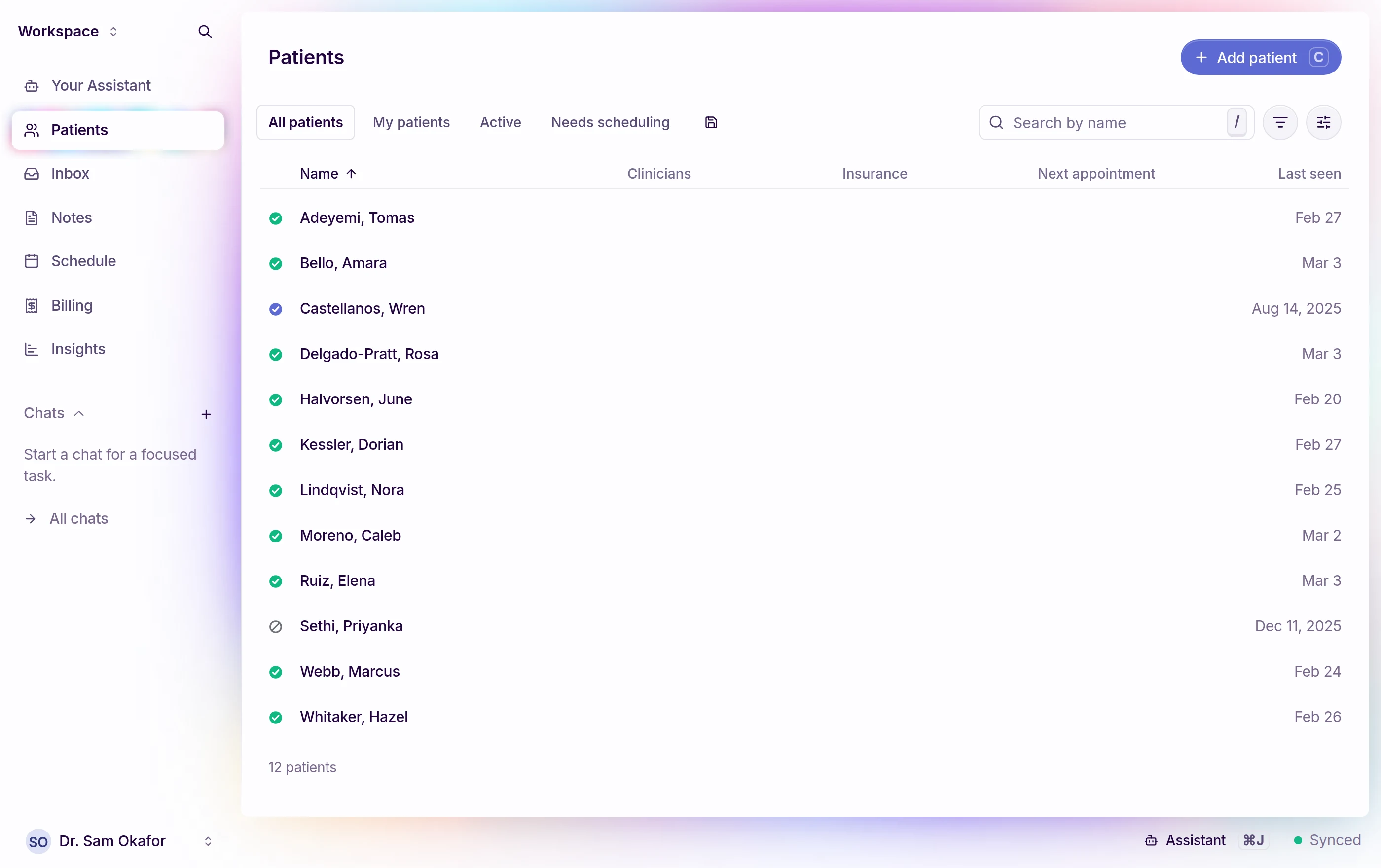
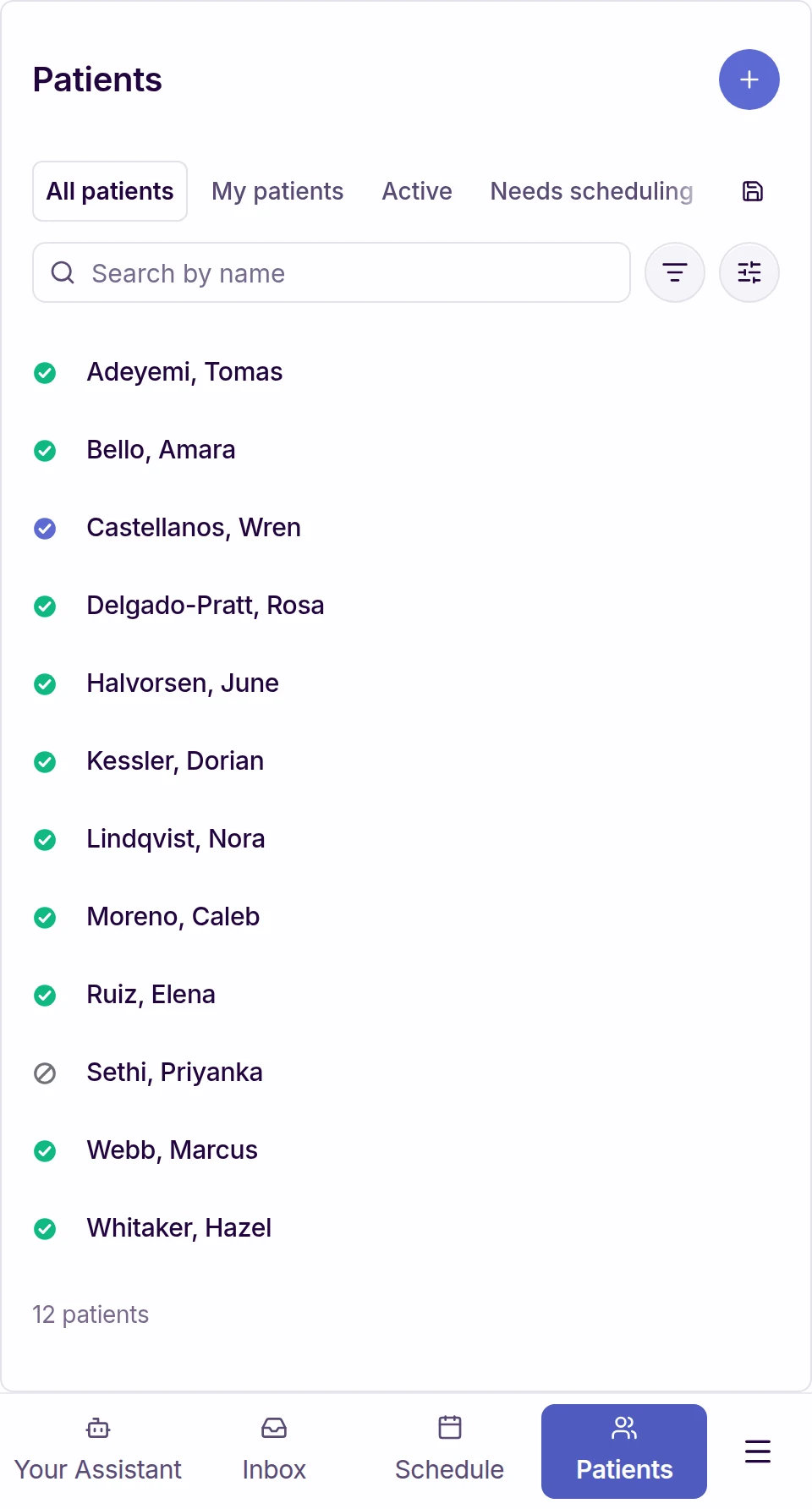
Imported clients appear in your customizable Patients list, one click from their chart.
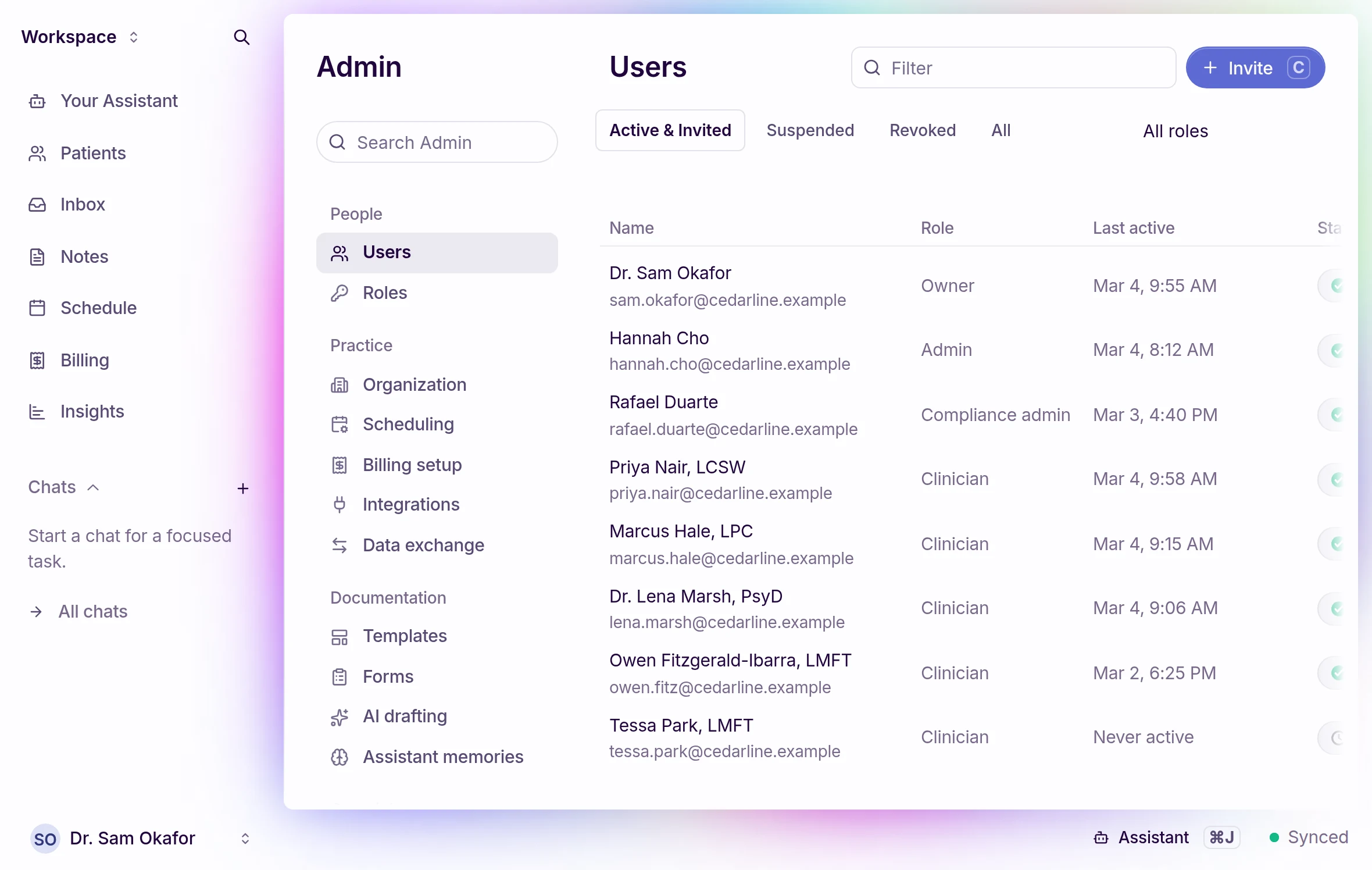
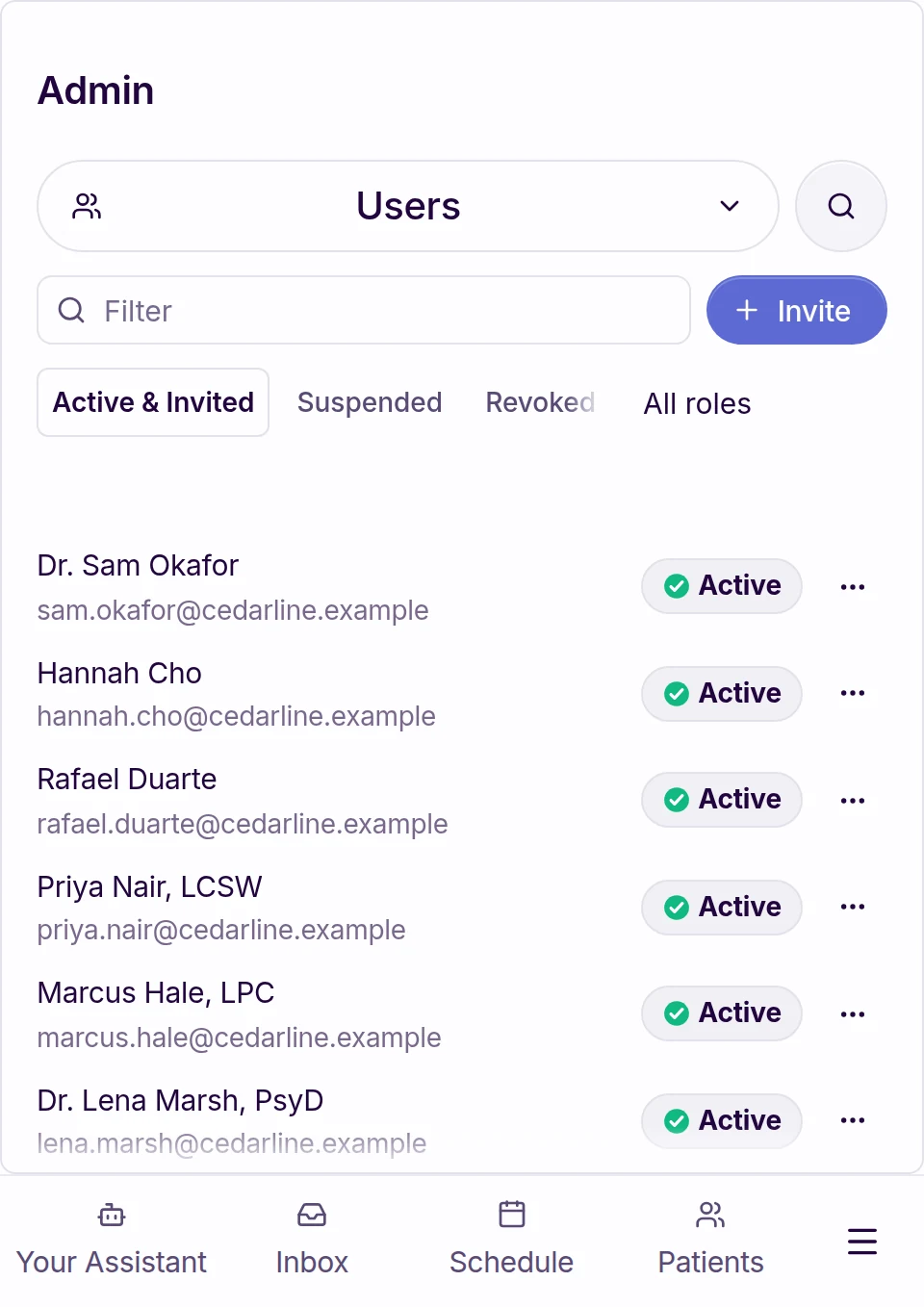
Invite your staff and assign owner, admin, clinician, or compliance admin roles.
Your records stay yours. Request, approve, and release chart exports in open standards with a complete audit trail.
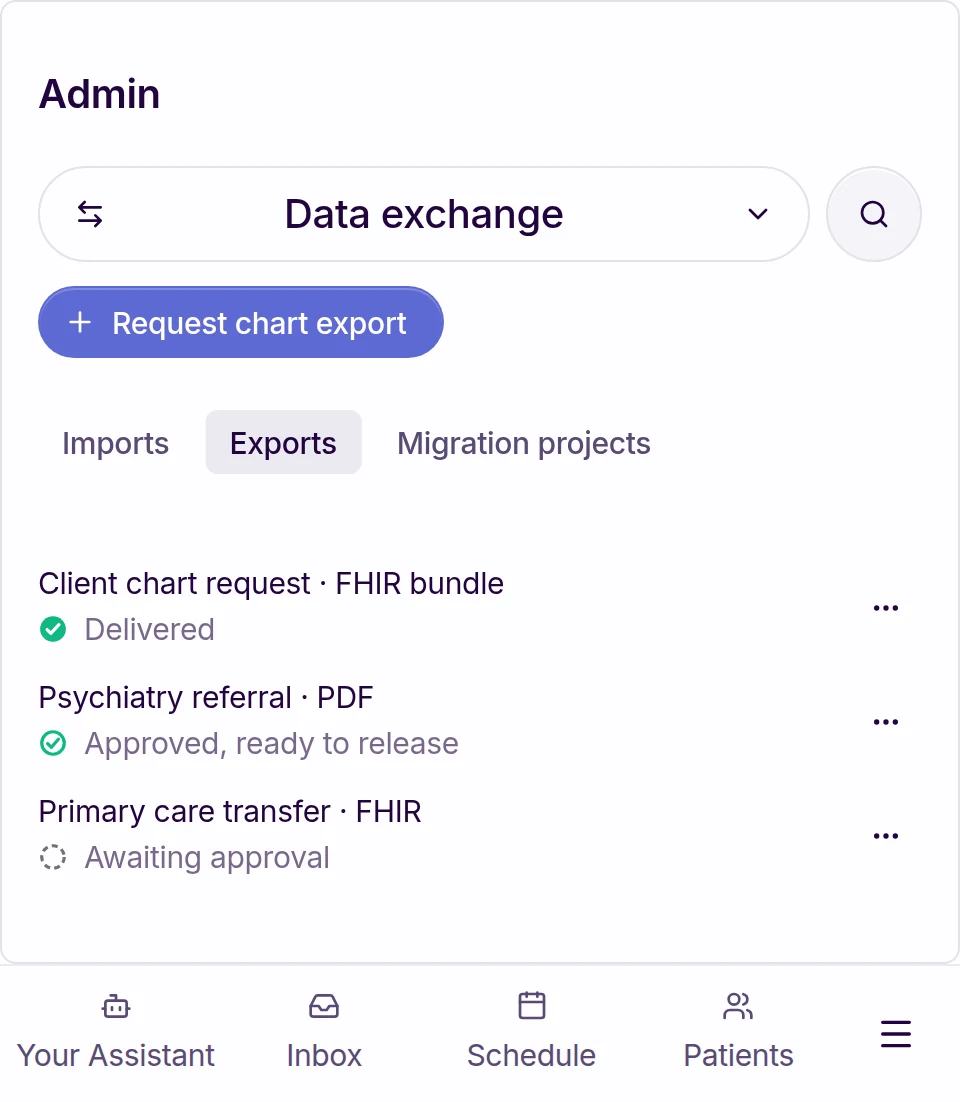
Export any chart as a standard FHIR R4 bundle for another system.
Export a C‑CDA continuity-of-care document to share with another care team.
Every export moves through explicit approval and audit logging. Leaving is never harder than arriving.
Keep your original export for record types outside the CSV import.
| What | Where it stands |
|---|---|
| Files and unsupported history | Prior notes import as read-only documents. Intake forms, scanned files, diagnoses, prescriptions, and billing history stay behind. |
| Importing FHIR and C‑CDA files | Charts export in FHIR R4 and C‑CDA. FHIR import is unavailable, and C‑CDA import covers demographics only. |
Tell us what your current EHR exports, and we will map your move together.